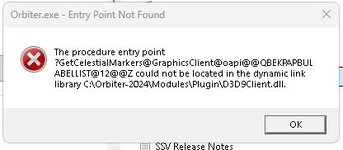
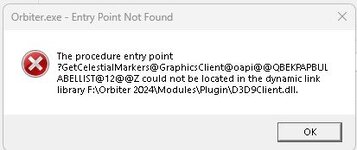
Problem D3D9 not working with orbiter 2024

Here's the Orbiter.log for reference, which fails to load D3D9Client.dll. @jarmonik can you verify the bug on Windows 11+DirectX 9 runtime+DirectX 9 on 12?

Sorry, I can't verify a bug. The error code indicates that D3D9Client.dll doesn't found. Which is kinda odd. I don't recall reports of this kind of problem before. Could this be some kind of protection issue "access denied" If you install Orbiter under "Program Files" folder then that's a way to attract trouble. So, make sure orbiter installation is not in there.

If you disable "DX12Wrapper" i.e. D3D9 on DX12 does it load ?
There is also "DXVK" which in my experience works better then "DX9 on DX12"

Also DX9 runtime installation is in two phases. First phase extracts the installation files in a local folder. The 2nd phase is to run setup.exe. It's a common mistake to forget to run the setup.exe. Two phase installation is a very rare this these days.
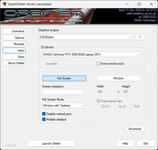
 
Sorry, I'd like to ask regarding "DX12Wrapper". I mentioned it some time ago:
Orbiter 2024 works perfectly for me with the default settings, namely "EnableDX12Wrapper = 0". I just wanted to try this option to look how this works, namely what the difference in performance I will get. So, I set "EnableDX12Wrapper = 1" and launched a scenario. I immediately get a black screen, but the game is loading since after a few secons I hear all game sounds. I can enable engines and hear engine sounds. But all the time I see the black screen. I can attach all needed files (logs) and make tests to try understand the problem. It's just interesting why it doesn't work for me. What should I do?
I don't even see a splash screen during launching. I just tried it with Orbiter 2024.
 
My new laptop will not use the video card for normal desktop stuff in order to use less battery. Somewhere there is a setting to force the laptop to use the video card all the time. That fixed the problem. You can test this by running another program/game that uses the card then alt tab out to start Orbiter. You should have it now.
 
I'm havving the exact same issue. Did you ever get it to work? Haven't tried the d3d7 yet though.
 
I'm havving the exact same issue. Did you ever get it to work? Haven't tried the d3d7 yet though.
For Orbiter 2024:

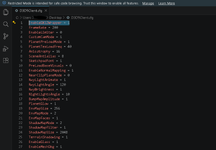
Open orbiter_ng.exe and select D3D9 in video settings, then close orbiter. In your Orbiter folder, locate D3D9Client.cfg and look for EnableDX12Wrapper = 0 (should be line 1 if I recall correctly). If it does not exist, create the line, change the 0 to a 1, save, then close the file. Then, launch orbiter_ng.exe again and, in the video tab, select your GPU. Make sure NVIDIA control panel matches the same GPU you're using for orbiter if you have multiple GPUs in your computer.
 

Attachments

  • OrbiterDX12Wrapper.png
    OrbiterDX12Wrapper.png
    98.8 KB · Views: 4
I am also struggling with D3D9 Client. I have all the requirements to run. I checked my Orbiter log.cfg and found :
"000015.792: gcGetCoreInterface() FAILED. D3D9Client Not Found". I did d/l the client from the forum and extracted it into my root directory. The module does not appear, the video tab offers no option. I made sure the Microsoft Direct End-user (June 2010) also was current as well as my graphic driver. I've even reloaded Orviter to the C; drive because I read that Windows "would kill it" if it was on another drive. It doesn't matter after all this. I am a relatively new to Orbiter 2024. I can folow instructions. I know that GLS has been very helpful in the past, but I'm afraid to exhaust the forum's resources and patience. If anyone can make sense of this and steer me in the right direction, I sure would appreciate it.
 
For Orbiter 2024:

Open orbiter_ng.exe and select D3D9 in video settings, then close orbiter. In your Orbiter folder, locate D3D9Client.cfg and look for EnableDX12Wrapper = 0 (should be line 1 if I recall correctly). If it does not exist, create the line, change the 0 to a 1, save, then close the file. Then, launch orbiter_ng.exe again and, in the video tab, select your GPU. Make sure NVIDIA control panel matches the same GPU you're using for orbiter if you have multiple GPUs in your computer.
I did as you instructed and here is the error I got. I made sure D3D9 requirements were met including the End - User June 2010) needed and I even installeOrbiter on the local C; Drive. I received an error in my Orbiter config after D/L D3D9 Client "000049.917: Failed loading module Modules\Plugin\D3D9Client.dll (code 127)"
 

Attachments

  • Screenshot 2026-05-03 180515.jpg
    Screenshot 2026-05-03 180515.jpg
    16.7 KB · Views: 2
Isn't there suppose to be a d3d9.ll driver in the zip file? Maybe this coulld be the reason I'm getting "failure to load d3d9.dll". in the Orbiter log. Isn't this program suppose to have this driver? It is not in the zip file. I managed to d/l a driver and resolved one error . Now , I get this error in the log.
"000022.503: gcGetCoreInterface() FAILED. D3D9Client Not Found" Does anyone have fix for this?
 
Last edited:
Make sure your antivirus program isn't eating any files by false positives.
 
Make sure your antivirus program isn't eating any files by false positives.
Yes, I did check and there are no issues there. I managed to fix the "no d3d9 module" issue. but the Aft monitors in the SSV Shuttle will not power on and I believe its due to that error in the Orbiter log that I posted. My procedures for powering them were identical to tutorials about power manament, Panel F14, etc. so everything is good except for the program can't find the D3D9 Client which is clearly in Orbiter in its proper placement during extraction.
 
Make sure "Custom Camera" in the D3D9Client Advanced Setup dialog is set to "Enabled".
 
Make sure "Custom Camera" in the D3D9Client Advanced Setup dialog is set to "Enabled".
Thank you for your assistance. I did check the client cfg file and the Custom Cam has a value of 1 Maybe you could review my files and see if you find something I might have missed.
 

Attachments

To access the D3D9Client Advanced Setup dialog, click on Video, then make sure D3D9Client is selected where it says "Graphics engine", then click on the Advanced button. Also, make sure you're running Orbiter_NG, not Orbiter! External graphics clients such as D3D9Client will not work with regular Orbiter as it has it's own built in DX7 engine that does not support all of the advanced features that D3D9Client does.
 
To access the D3D9Client Advanced Setup dialog, click on Video, then make sure D3D9Client is selected where it says "Graphics engine", then click on the Advanced button. Also, make sure you're running Orbiter_NG, not Orbiter! External graphics clients such as D3D9Client will not work with regular Orbiter as it has it's own built in DX7 engine that does not support all of the advanced features that D3D9Client does.
Unfortunately, I get this error in Orbiter_NG when I changed the
To access the D3D9Client Advanced Setup dialog, click on Video, then make sure D3D9Client is selected where it says "Graphics engine", then click on the Advanced button. Also, make sure you're running Orbiter_NG, not Orbiter! External graphics clients such as D3D9Client will not work with regular Orbiter as it has it's own built in DX7 engine that does not support all of the advanced features that D3D9Client does.
Hi Dave, I worked through the D3D9 issues last night by extracting a complete clean version of Orbiter and followed your instructions. Everything went very well and I have Orbiter NG working the way it should. I wanted to say thank for spending your time and attention to helping me. I really appreciated it.
 

Attachments

  • Error.jpg
    Error.jpg
    15.2 KB · Views: 3
Back
Top