Tutorial Frame by frame animations in Orbiter

Juste une courte vidéo de test :
Thanks:)
Both look very good!
It worked for me
I would first think of missing dependencies (do you have pictown installed?) or addon conflict, but that should cause a ctd or an other error?

It does look like incompatibility with either the Orbiter version (I have a solid and fully functional Orbiter2010 P1 install) or operating system, using win10 64bit (it might be a 32bit compiling problem?)

Didn't intend to open a can of worms! Maybe this can be looked at later with more user feedback.
Look forward to your future updates.:)
 
Yes, if it's possible in Orbiter 2010, it's surely possible in 2016 or 2024.

dgatsoulis, who found this brilliant trick, used the "spacecraft dll" for his demonstrations specifically in Orbiter 2016.
I simply adapted his technique with a dedicated DLL.

I also want to point out that I'm just a beginner programmer.

And that I developed this DLL using the free ChatGPT AI. But it wasn't easy.

There's a reason I did it in Orbiter 2010.

Pictown, UCGO, and Ummu currently only work in Orbiter 2010.
 
Amazing. I'd like to try it if possible.
 
Sure, if you want to try it.

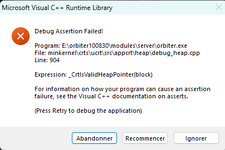
Just so you know, I still get a crash when I stop the simulation...
The same one as in Orbiter 2010, except that one only happened when a vessel was destroyed.
Everything is in the zip file.

I fixed the replay because it wasn't working.
 

Attachments

Last edited:
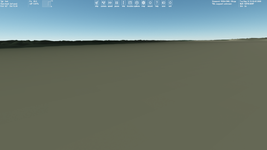
Thanks. I'm trying to try it, but after loading the included scenario I didn't see a character, althoug the vessel name "test" is focused:

1779799368384.png

Maybe I should do some additional steps? I'm using Orbiter 2024.
 
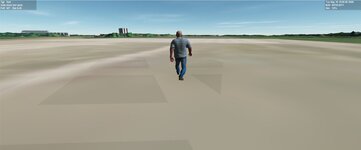
Works for me. in 2024 d3d9 Not sure what these are they show up when he is moving?
 

Attachments

  • guywalking.jpg
    guywalking.jpg
    26.8 KB · Views: 3
This doesn't work with Orbiter 2016! Only with Orbiter 2010.
B key: walk, run, other.
S key: stop.
P key: record trajectory.
O key: loop recording.
C key: delete recording.
Right key: turn right.
Left key: turn left.

Just a short test video:
I also corrected this one for "Orbiter 2010".
 

Attachments

Ok.
I can set throttle only 800 or 5000 with using "+" and "-".
"D" and "Q" work as described.
Animation speed is constant.
"P" seems to create a single "CatRun_replay.txt" file in Config/AnimPath, but I don't know how to use (load) this file.
"O" and "C" I don't know how to use. (I'm not noticing their effects).

Orbiter crasehd after exiting (lanchpad isn't reloading). I get D3D9: [Session Closed. Scene deleted] in Orbiter.log.
 
Ok.
I can set throttle only 800 or 5000 with using "+" and "-".
"D" and "Q" work as described.
Animation speed is constant.
"P" seems to create a single "CatRun_replay.txt" file in Config/AnimPath, but I don't know how to use (load) this file.
"O" and "C" I don't know how to use. (I'm not noticing their effects).

Orbiter crasehd after exiting (lanchpad isn't reloading). I get D3D9: [Session Closed. Scene deleted] in Orbiter.log.


Press E to play the recording and O to loop it.It's provided in a text file within the zip file.
I added a thrust of 5000N and less to cut off the cutting force to test hill climbing.800N for walking should be sufficient.

Press E to play the recording and O to loop it.

It's provided in a text file within the zip file.

I added a thrust of 5000N and less to cut off the cutting force to test hill climbing.
800N for walking should be sufficient.
 
Well, it looks "C" key works.
"P" starts and stops recording.
I'm still not sure how to use "O" key. Also, I don't see "E" key in Control keys.txt.
 
Back
Top