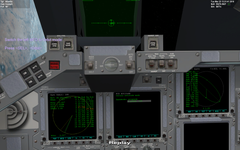
1. Please unpause the simulation (Ctrl-P) to play the tutorial.
2. Welcome! You are in command of Space Shuttle Atlantis to fly a resupply mission to the International Space Station.
3. Atlantis is ready on pad LC39B of Kennedy Space Center. T-80 seconds and counting.
4. This flight is pre-recorded, but I will explain the procedures and the use of the autopilot, so you can fly your own mission later.
5. The left MFD has been set to the Shuttle ascent autopilot interface mode (AscentAP), where you can set the launch parameters.
6. You can adjust the launch azimuth angle by pressing the AZ- and AZ+ buttons.
7. You can adjust the launch azimuth angle by pressing the AZ- and AZ+ buttons.
8. The launch azimuth is the initial heading the Shuttle will follow after launch. It governs the inclination of the orbit you enter.
9. You want to intercept the International Space Station orbiting at an inclination of 51.6° on the descending section of its orbit, and the launch azimuth has already been set up accordingly for a SE launch.
10. You can adjust the altitude of the target orbit with the AL- and AL+ buttons.
11. You can adjust the altitude of the target orbit with the AL- and AL+ buttons.    This has also been adjusted to approximately match the ISS altitude at 350km.
LAUNCH
12. Pressing the L button will initiate the launch sequence. (In this tutorial, this will be done automatically.)
13. Space Shuttle main engine ignition!
14. Solid rocket booster ignition!
15. Liftoff of Space Shuttle Atlantis on its mission to the International Space Station.
16. The autopilot controls the engine gimbals to roll towards the commanded launch azimuth.
17. The Shuttle launch stack then starts to pitch over backwards to enter the pre-defined ascent profile.
18. On the MAP MFD display, it can be seen that the Shuttle's launch location at Cape Canaveral, Florida, is just about to pass underneath the ISS's orbital plane (symbolized by the yellow line).
19. This event marks the launch window - it allows the shuttle to launch into the same orbital plane without the need for fuel-expensive plane changes later on.
20. In fact, if you look closely, the ISS's orbital plane is still slightly east of the launch position. This is because during ascent, the shuttle's eastward component of its tangential velocity is still below its eventual orbital velocity, meaning that the ISS will continue to gain on the shuttle position.
21. Note how, as it pitches over and starts to accumulate a horizontal velocity component, the shuttle's orbital plane (indicated by the green line) is slowly rotating to match the ISS's plane.
22. The launch autopilot manages the first part of the flight, from launch to orbit circularization.
23. So for now you can lean back and enjoy the ride.
24. While the autopilot is active, it shows the current (Cur) and target (Tgt) control parameters.
25. Time to mention another function of the AscentAP MFD mode: Clicking the PG+ and PG- buttons pages through the available display pages (only the first two are currently active).
26. On page 2, the MFD shows the gimbal positions of the space shuttle main engines (SSME) and the solid rocket boosters (SRB).
SRB separation at MET=126s!
27. The spent solid rocket boosters fall back into the Atlantic off the Florida coast.
28. The ascent is now powered with the Shuttle's main engines, fed from the external tank.
29. The Orbiter/ET assembly rotates upright by gimballing the Shuttle's main engines
30. Main engine cutoff.
31. The empty external tank is jettisoned. It will follow its suborbital trajectory and go down in the southern Indian Ocean.
32. The two engines of the Orbital Maneuvering System fire for the OMS-1 burn. The purpose of this burn is to achieve the commanded apogee altitude of 350km.
33. OMS cutoff.
ORBIT
34. The apogee altitude is now 350km as programmed.    The orbiter will now coast to apogee, where the second OMS burn will take place.
35. The payload bay doors are opened to expose the radiators.
36. Fast-forwarding to apogee …
37. Approaching apogee, the OMS engines fire for the OMS-2 burn to raise perigee and circularize the orbit.
38. This is the end of the OMS-2 burn.
PREP for RENDEZVOUS
39. The orbiter is now in an approximately circular orbit at altitude 350km, coplanar with that of the ISS.
40. This also concludes the control of the ascent autopilot, which has now deactivated itself. The following maneuvers are planned and executed by hand.
41. In preparation for the next maneuvers we need to set up the instruments.
42. First, switch the head-up display (HUD) to Orbit mode, by pressing "H" twice.
43. In Orbit mode, the HUD displays a pitch ladder with respect to the orbital plane, and a yaw tape that shows the angle to the orbital velocity vector (the prograde direction).
ORBITAL PLANE BURN SETUP
44. The next task is to fine-tune the orbital plane to match that of the ISS.
45. This will require a velocity change (Delta-V) normal (perpendicular) to the orbital plane, executed at the intersection (node) of current and target planes.
46. This type of plane change is assisted by the "Align planes" MFD mode.
47. On the left MFD, Click <SEL>, <Align planes>.
48. Next, pick the target object. Click <TGT>, press Enter, type "iss", press Enter.
49. The display shows the current orbital position (P) in relation to the descending (DN) and ascending node (AN) defining the line of nodes (the yellow line) with the target plane.
50. Other useful readout values are the relative inclination between the planes (RInc), the rate of change (Rate), the time to node (Tn) and the estimated burn times (TthA, TthD) for matching the planes, at ascending and descending node, respectively.
(Note: AN = Ascending Node which translates to using the NML + direction in RCS. DN = Descending Node which translates to burning in the NML - direction.)
51. The plane change will require a burn normal to the orbital plane, so we need to orient the orbiter correspondingly.
52. An additional problem is the fact that on the Shuttle, the OMS engines are tilted by about 15 degrees against the longitudinal axis.
53. This must be taken into account when rotating the orbiter.
54. The "Attitude RCS" MFD mode can assist here.
55. On the right MFD, click <SEL>, <Attitude RCS>.
56. Click <SET>, followed by <BAS>, to switch the base attitude mode to "Normal".
57. Click <+R> to add a pitch rotation to the base mode. Now click <+V> repeatedly until the rotation angle is set at +15 degrees.
58. Clicking <GO> will activate the commanded attitude mode. (In this tutorial, this is done automatically).
59. Rotating the shuttle normal to the orbital plane (+15 deg).
60. A short OMS burn for precisely matching the orbital plane with the ISS.
61. Watch the relative inclination (RInc) slowly dropping down to zero.
62. OMS cutoff.
PROGRADE BURN IN DAYLIGHT
63. Switching back to prograde orientation.
64. The next maneuver will be a prograde burn to increase the orbital period, in order to let the ISS catch up for rendezvous.
65. The position of the prograde burn will become the perigee location of the orbit.
66. The perigee location will also be the designated rendezvous point with the ISS.
67. Since the current orbit is approximately circular, the perigee is not yet well defined. The next burn can be initiated anywhere along the orbital trajectory.
68. However, we will delay the burn until we emerge from the Earth's shadow. This will ensure that the eventual rendezvous and docking maneuver can take place in daylight.
69. Fast forwarding …
70. To time the prograde burn, switch the left MFD to Sync Orbit mode.
71. Press <SEL>, <Sync Orbit>.
72. Next, press <TGT> for target selection, followed by <Enter>. Type "iss", and press <Enter>.
73. Press <MOD> twice, until the "Ref" readout shows "Sh periapsis". This sets the target rendezvous point to our current periapsis position.
74. Finally, press <LEN>, type "15", press <Enter>. This sets the length of the arrival time list to 15 orbits.
75. Turning prograde + 15deg for the next burn, again with the help of the AttitudeRCS MFD mode.
OMS ignition for prograde burn.
76. The arrival time list on the right side of the Sync Orbit MFD shows the time to rendezvous point of your spacecraft (Sh-ToR) and the target craft (Tg-ToR) for a sequence of orbits, where "0" refers to the current orbit.
77. The pair of entries indicated in yellow represents the closest match of arrival times between you and the target.
78. As your orbit period increases during the prograde burn, this will eventually jump to the end of the list, and then start moving up the list.
79. The earlier you want the rendezvous to take place, the longer you will need to burn (and the longer you will need to decelerate at rendezvous to match orbits).
80. Thus, there is a tradeoff between rendezvous time and fuel expenditure.
81. If you are short on fuel, you can target a later orbit for rendezvous.
82. In this instance, we are planning for rendezvous in orbit 5.
83. OMS cutoff.
ORBIT RADIUS AT PERIGEE MATCH ISS
84. Returning to the prograde attitude.
85. The arrival times are now synchronized for perigee in orbit 5, approximately 8 hours (27.8k seconds) from now.
86. The next task in preparation for the rendezvous is to make sure that the orbit radius at perigee matches that of the ISS.
87. For that purpose, we need to record the ISS's radius distance when it passes our perigee longitude.
88. Switch the left MFD to Orbit mode:    Press <SEL>, <Orbit>.